AI garden design guide
Can Microsoft Copilot design your garden?
The short answer
Yes. Microsoft Copilot can create garden images from a description or edit a photo you upload. Use your own photo when you want to judge a change at your house; use a text-only image when you are still exploring a style. A short brief for one bed is easier to evaluate than a request to redesign everything.
Use the consumer Copilot image tools
You do not need to start with a Microsoft 365 document to explore a garden idea.
Microsoft’s consumer Copilot supports both text-to-image requests and changes to uploaded images. Attach a photo using Add images or files, describe the edit, and continue with follow-up requests in the same conversation.1
Use the consumer Microsoft Copilot app or website for these instructions. Microsoft Designer and Microsoft 365 Copilot have different controls.
Decide whether you need a photo edit or a fresh image
These two requests solve different problems. Pick the one that matches the decision you are making today.
A written description
Good for: Finding a look you can describe to someone else.
What to check: The result may invent a house, yard size and layout.
Your yard photo
Good for: Trying planting beside an existing path or entrance.
What to check: The edit must still match the original house and boundaries.
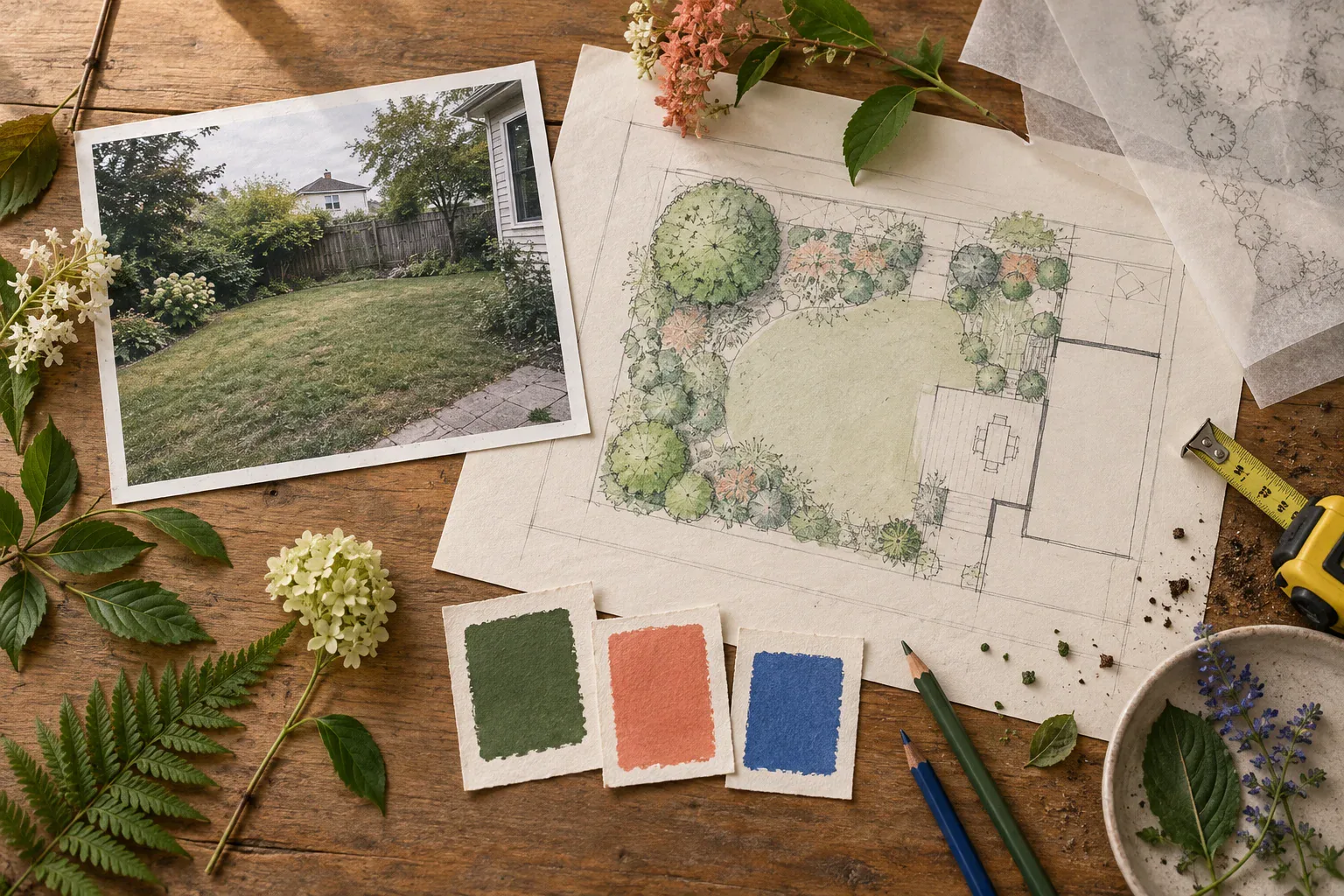
A measured sketch plus notes
Good for: Explaining available space before discussing plants.
What to check: A generated picture does not validate measurements or construction details.
Try a planting refresh below one window
In this example, an empty bed sits between the driveway and a low front window. The driveway stays; the planting needs to leave the window open.
- 1
Attach the original photo
Use a view that shows the whole bed, the window and the driveway edge. Add the bed’s measured depth and your observed sun conditions.
For example: The planting area ends at the driveway. Keep the driveway surface and its width.
- 2
Ask for one garden concept
Request the intended change without mixing it with new architecture, paving and lighting.
For example: Edit this photo to add layered planting in the empty bed. Keep the window visible, retain the driveway and brickwork, and use green foliage with a few white flowers. Keep the original camera view.
- 3
Revise the largest mismatch
Keep the original beside the result. Correct the part that makes the idea unusable before refining the color.
For example: The shrubs hide the lower window. Reduce their height in the image while keeping the rest of the planting direction.
Return to the original if revisions change the yard
A successful flower-color edit is not worth keeping if the driveway has moved.
When reviewing successive versions, check the same fixed features: window corners, the driveway edge and the front step. If those no longer align with the original, attach the original again and narrow the requested edit to the bed. You can keep the preferred planting palette in the written brief.
Save the version you like with the brief that produced it. That gives you a useful reference for a nursery conversation, and avoids relying on a long chat to remember which changes you wanted.
When Copilot is enough, and when Gardenful fits better
Gardenful publishes this comparison. Copilot is worth trying if you already know the change you want to describe. Gardenful helps when the empty bed is the problem, but you're not sure what would look good in it.
Explore a look
Copilot: Describe an idea or upload a photo and request an edit.
Gardenful: Start a planting design from your yard photo and preferences.
Explain what can change
Copilot: Describe the area to change and the features to keep.
Gardenful: Mark the bed and let guided questions help you decide on the planting.
Keep a usable design
Copilot: Save the image and collect the relevant notes from the conversation.
Gardenful: Save the design with plant names and suggested quantities for your nursery visit.
Check the real bed before buying
Use the image to choose a direction, then measure the space it needs.
Verify mature plant height and spread against the window and driveway, along with the bed’s light and soil conditions. Plant size at the nursery is not the space it will occupy later.2
Ask for a plant shortlist by role: a low edge, a repeating middle layer, and any taller accent that fits clear of the window. Check the proposed names locally before turning the picture into a shopping list.
Frequently asked questions
Can Copilot redesign an existing garden photo?
Yes. Consumer Microsoft Copilot supports uploaded-image edits. Attach your yard photo and describe the planting change, including the house, paths and other features that must remain.
Which Copilot do these instructions use?
These instructions use consumer Microsoft Copilot, rather than the Microsoft 365 Copilot app. Check image availability and current limits in your account.
Can Copilot give me plant names as well as an image?
You can request a written shortlist, but ask which names are suggestions and whether they correspond to the picture. Verify their site requirements and mature sizes before buying.
 Gardenful
Try a new look for that empty bed.
You don't have to know what belongs in that empty bed. Add your photo, tell Gardenful what you like, and see a realistic planting design with suggested plants and quantities.
Gardenful for iPhone
Download the app free and start with a photo of your yard.

Sources(2)
Official feature documentation and planting guidance.
- [1]
- [2]Right Plant, Right Place: Plant Selection and Siting
University of Florida IFAS Extensionhttps://ask.ifas.ufl.edu/publication/EP416